State Apostille Services from USA
Apostille Services in California
Apostille Services in Texas
Apostille Services in Florida
Apostille Services in Washington
Services from Canada
Services from United Kingdom
Services from New Zealand

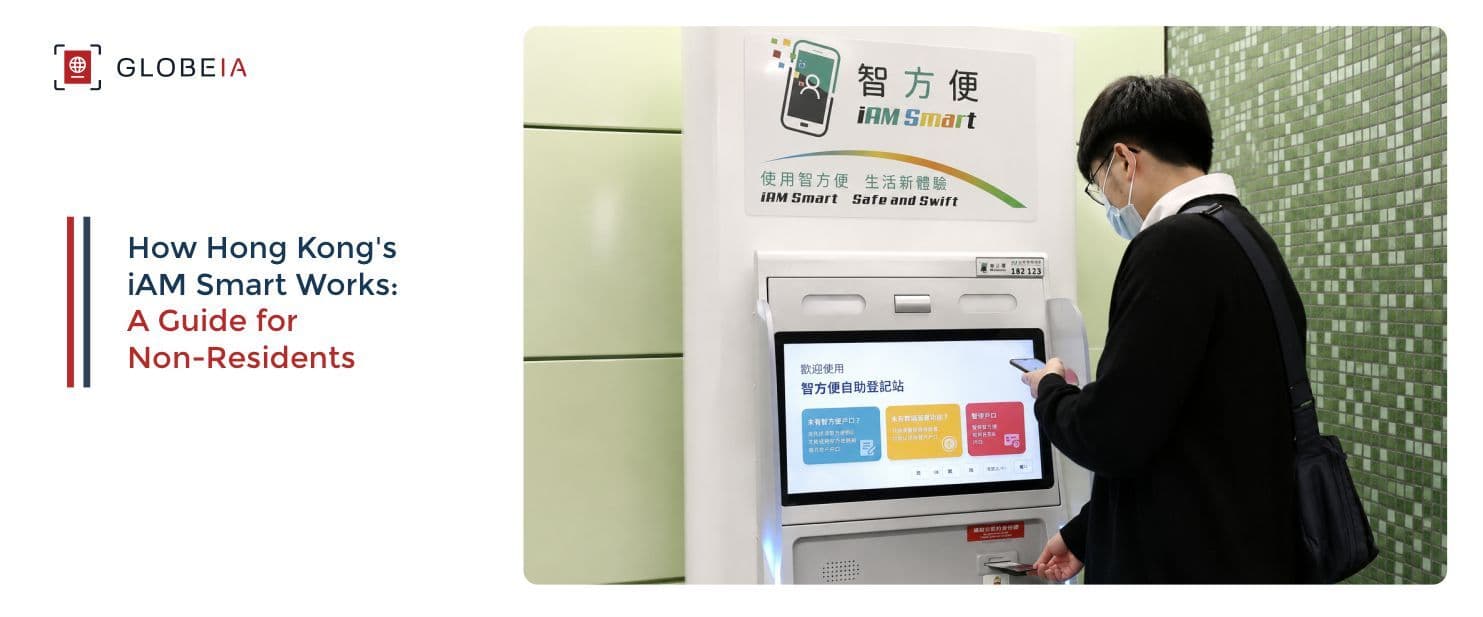
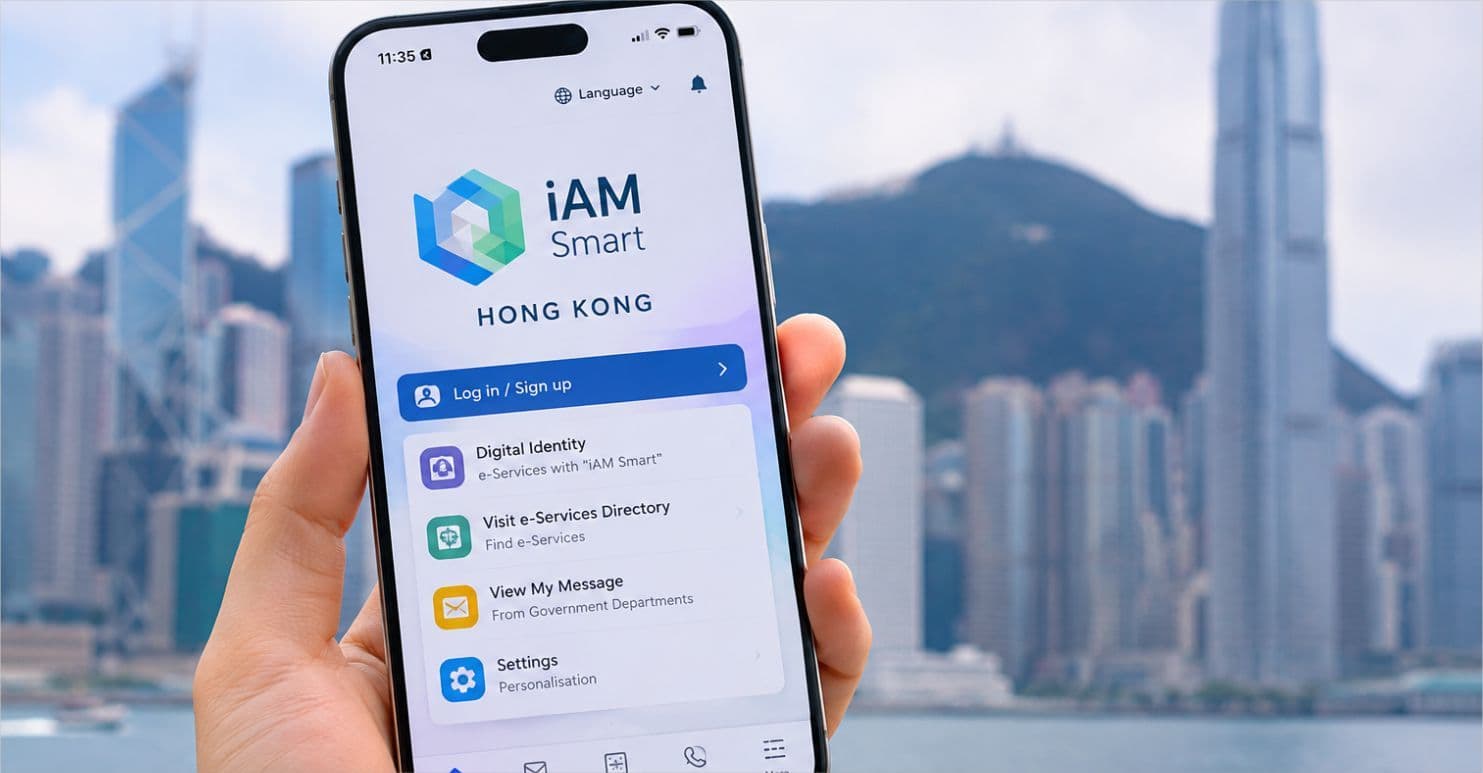
iAM Smart, launched in December 2020, is Hong Kong's official digital identity app, and it works as a single platform for personal and government services. Instead of remembering different logins for different websites, you use one account on your phone to access everything. Right now, the app connects to more than 1400 services online, including filing taxes using eTax and getting a license for your vehicle. Once you are registered, it becomes a tool you can rely on for everyday tasks, whether that means paying a bill, checking a government notice, or signing a document.
Check the List of All Services Offered by iAM Smart Hong Kong
For anyone new to Hong Kong or not currently living here, understanding how to set it up can save a lot of time and stress later on. Keep reading this blog to understand how iAM Smart works and ways to register for it smoothly.
Yes, iAM Smart is available to non-residents of Hong Kong. Non-resident does not mean non-citizen. Hong Kong citizens can be sitting anywhere in the world, whether that's London, New York, or Singapore, and still use the app just fine. Location has nothing to do with eligibility.
The Only Requirement: A Hong Kong Identity Card
Anyone who holds a Hong Kong Identity Card and is aged 11 or over can sign up for iAM Smart. That's it, nothing more is asked for.
The only extra step applies to younger applicants. If you are between 11 and 17 years old, you will need a parent or guardian to give their consent and be part of the registration process. Beyond that, there are no other conditions tied to citizenship, nationality, or where you currently live.
To get a Hong Kong Identity Card (HKIC) in the first place, you don't need citizenship. You just need to be over 11 years old and have lived in Hong Kong for 180 days or more.
This means anyone staying in Hong Kong on a long term visa, and who ends up holding an HKIC because of that, is also eligible to register for iAM Smart and use everything it offers. This includes groups like:
If you fall into any of these categories and already hold a HKIC, you can register and use iAM Smart exactly the same way a citizen would.
What About Consular Corps Identity Card (CCIC)?
Individuals like diplomats and consular staff working in Hong Kong usually don't hold a regular HKIC, but instead carry something called a Consular Corps Identity Card, or CCIC. This card is issued specifically to consuls, consular staff, and members of the Office of the European Union in Hong Kong, along with their spouses and dependent children aged 11 or above.
The CCIC holders are also eligible to register for iAM Smart, since a CCIC counts as a valid form of Hong Kong Identity Card. But the registration process for CCIC holders is not exactly the same as the standard self-service options covered above. Instead of registering directly through the app, kiosk, or service counter using the usual steps, CCIC holders are asked to reach out through iAM Smart's live chat support to get the process started, since their documentation and verification is handled a little differently.
Who Is Not Eligible
The one group left out are short term visitors, or anyone who does not hold a HKIC. Since the entire system is built around the HKIC, without one, there is no way to register for iAM Smart, regardless of how long you plan to visit.

Authentication
This is the main feature most people use iAM Smart for. Instead of creating a new username and password for every government website or app, you just log in with iAM Smart using your face, fingerprint, or a PIN. Once you are set up, you can use this single login across hundreds of government and commercial services.
For certain services that need extra proof of identity, like opening a bank account or applying for something sensitive, iAM Smart offers step-up authentication as well. For this, you might be asked to scan your face again, or tap your Hong Kong ID card against your phone so it can read the chip inside it.
e-ME Form Filling
If you have ever filled out a Hong Kong government form, you know the pain of typing your name, ID number, and address again and again for every single application. The e-ME feature was made to solve this problem.
You save all your personal details once inside the app (like, your name, gender, HK ID number, DOB, etc), and from then on, participating forms can pull that information automatically. You will just have to review it and submit.
The form can also pull out some additional details that you add in your e-ME profile, including:
You can choose what to add here. Nothing is filled in without your permission, and you can update or remove it whenever you like.
Personal Assistant
iAM acts as a dashboard for everything you are doing with government departments and connected companies. You will get one central view showing:
It saves you from having to log into separate accounts just to check if something has been approved or if a bill is due.
Digital Signing (Only With iAM Smart+)
This feature is only available if you have the iAM Smart+ version of the account, which needs in person registration rather than the basic online sign up.
With iAM Smart+, you can sign documents digitally, and that signature actually holds legal weight under Hong Kong law, specifically the Electronic Transactions Ordinance. This is useful for handling contracts, official paperwork, or anything that would normally need a wet ink signature.
To do this, iAM Smart+ users get access to iAM Smart Cert, which is the part of the system that actually creates and verifies your digital signature. Once it is set up, signing a document becomes as simple as tapping a button instead of printing, signing, and scanning paperwork.
There are three different ways to register for iAM Smart. If you are a non-resident living elsewhere, you can do it entirely on your own through the mobile app. And if you’re a non-resident here in Hong Kong, you can make use of a self-registration kiosk found in various locations around Hong Kong, or get help in person from a service counter or mobile registration team.
For in-person registration, you can check the locations of kiosks and service centers in Hong Kong here!
But before you get started, understand what you will need on hand, since the requirements are a little different depending on whether you are registering as an adult or helping a younger family member sign up.
| Adults Over 18 Years | Minors (11 to 17 years) |
|
|
Option 1: Mobile App
This is the most convenient one, and usually the only method of registration if you’re sitting outside Hong Kong in any other country. Download iAM Smart App From Here.
The process is almost the same whether you are registering for yourself as an adult or helping a younger family member sign up. The only real difference is that anyone between 11 and 17 needs a parent or guardian involved at the start.
Step 1: Open the App and Start Registration
Open the iAM Smart app on your phone and tap "Start Quick Registration." The app will then ask for the applicant's age group, so select either "Adult (Aged 18 or over)" or "Minor (Aged 11 to 17)" depending on who is registering.
Step 2: For Minors, Bring In a Parent or Guardian First
If you selected the minor option, the young applicant needs to be sitting with a parent or guardian who already has their own iAM Smart account. That parent or guardian logs into their own account and scans a QR code shown on the applicant's phone. This links the two accounts together and confirms that a responsible adult is present and aware of the registration.
Adults registering for themselves can skip this and go straight to the next step.
Step 3: Read and Agree to the Declaration
Everyone needs to read through a declaration form before continuing. Adults read and agree to the Declaration of the Applicant. For minors, both the young applicant and the parent or guardian need to read and agree to their respective declarations, one for the applicant and one for the parent or guardian.
Step 4: Scan Your Hong Kong ID Card
Tap "Start" to begin the identity verification part. If you find it easier, you can turn on voice guidance for this section, it will talk you through scanning your card and taking your photo.
Take a photo of the front of your Hong Kong ID card using your phone's camera.
Step 5: Tap Your ID Card to Your Phone
After that, you will need to place your ID card near the back of your phone, close to where the NFC reader is. Hold it steady in that spot for around 8 seconds while the app reads the chip embedded in the card.
Step 6: Verify Your Face
Now the app will ask you to line your face up with a frame shown on screen. Follow the on screen prompts, which usually involve small actions like blinking or turning your head slightly.
Step 7: Confirm With Your Phone's Own Biometrics
Once your face is verified, the app will ask you to confirm using your phone's built in fingerprint or face unlock feature, whichever your device normally uses to unlock itself.
Step 8: Set Up Your Password
You will now create a 6 digit password for your iAM Smart account. This is separate from your phone's lock screen password and will be used specifically when logging into iAM Smart going forward.
Step 9: Add Your Email Address
Provide your personal email address. This is used for account related notifications and can also help you recover your account later if needed.
Option 2: Self Registration Kiosks

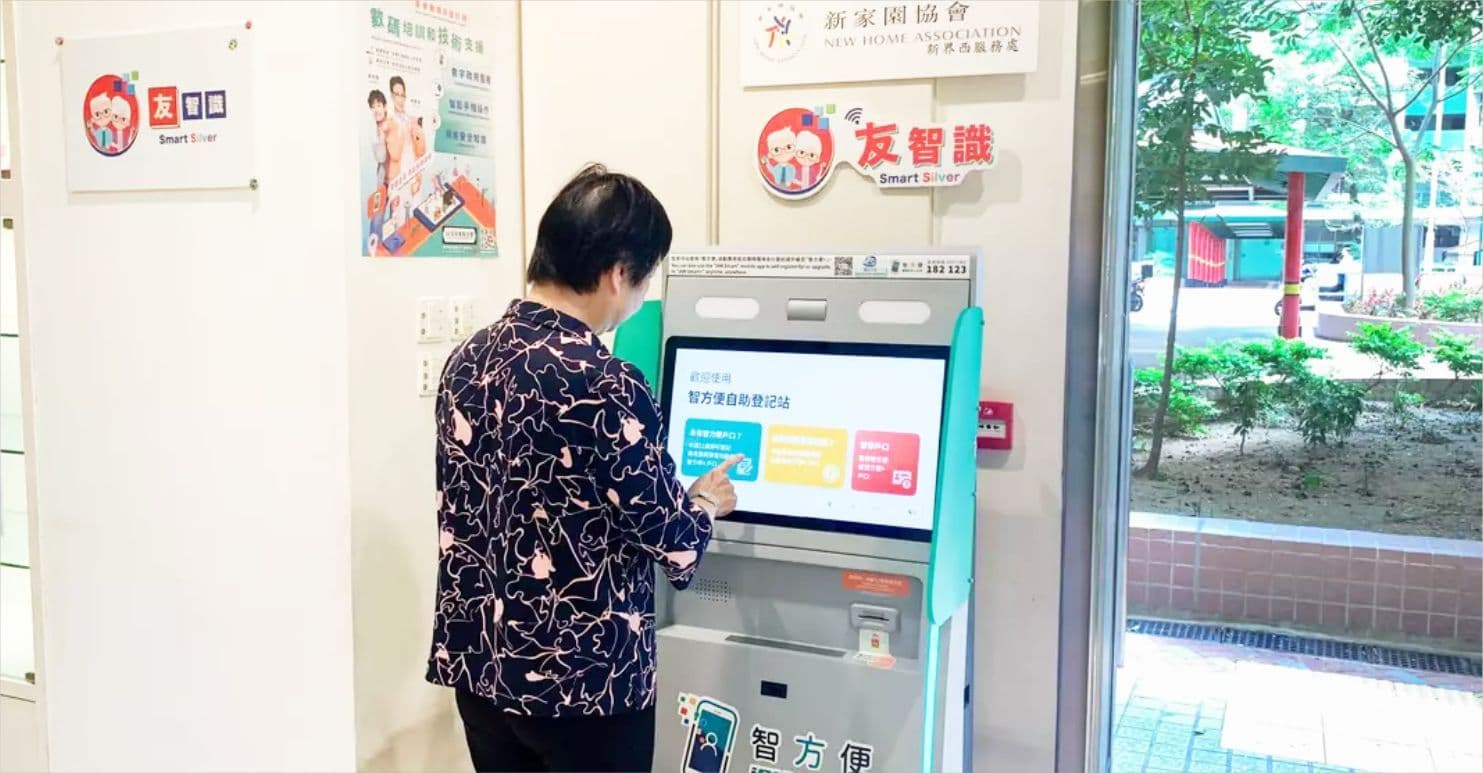
You can go to a self-registration kiosk or registration service counter and complete the process there. These are found in various districts around Hong Kong.
Step 1: Visit a Kiosk in Person
Head to any self-registration kiosk or service counter location. If you are registering someone between 11 and 17 years old, the parent or guardian needs to come along too, since their presence is required throughout the process.
Step 2: Choose Your Language and Registration Type
On the kiosk screen, select your preferred language, then tap "Registration of iAM Smart." From there, choose the correct age category, either "Register account (for persons aged 18 or over)" or "Register account (for persons aged 11 to 17)."
Step 3: Connect Your Phone to the Kiosk
Open the iAM Smart app on your own phone and select "Registration from Self-registration kiosk / Registration service counters." The kiosk will show a QR code on its screen, scan this using the app on your phone. This links your phone to the session running on the kiosk.
For minors, after scanning the QR code, tap "Continue" on the phone to move forward.
Step 4: Parent or Guardian Confirms (Minors Only)
If the applicant is between 11 and 17, the parent or guardian needs to log into their own iAM Smart account and scan a separate QR code shown on the kiosk to confirm they are present and agreeing to the registration. Adults registering for themselves can skip this step entirely.
Step 5: Read and Agree to the Terms
Everyone needs to go through the applicant statement and terms of use carefully before continuing. For minors, this part is done together, the parent or guardian sits with the applicant while they read and agree to the applicant's terms, and separately, the parent or guardian reads and agrees to their own statement as well.
Step 6: Scan Your ID Card at the Kiosk
Insert your Hong Kong ID card into the card slot on the kiosk. It will read the chip on your card and check that it is genuine. If you are using a newer Smart Identity Card, you may be asked to select your gender on screen as part of this step. After the reading is done, don’t forget to take your card back out of the slot.
Step 7: Verify Your Face
Line your face up with the frame shown on the kiosk screen to match your face to the photo on your ID card. After this, just wait a moment while the system verifies your identity.
Step 8: Confirm on Your Phone
Switch back to your phone and confirm using its built in fingerprint or face unlock feature, the same one you normally use to unlock your device.
Step 9: Set Your Password
Create a 6 digit password for your iAM Smart account. This will be what you use to log in going forward.
Step 10: Add Your Email Address
Provide an email address for account notifications and future account recovery.
Option 3: Service Counter or Mobile Registration Teams
If you want a real person to guide you through the process instead of doing it alone on a kiosk or phone, this is a good option. These are set up as fixed registration service counters, or as mobile teams that travel to busy spots like shopping malls and government buildings. Staff are there the whole time to help you through it. Once again, the steps are much the same for adults and minors, apart from the extra involvement needed from a parent or guardian.
Step 1: Visit the Counter in Person
Go to a registration service counter or find a mobile registration team at one of their set up locations. If the applicant is between 11 and 17 years old, a parent or guardian needs to come along and stay for the whole process.
Step 2: Staff Set You Up on Their Tablet
The counter staff will guide you through the registration on a tablet they have on hand. Select your preferred language, then choose the right age category, either "Register account (for persons aged 18 or over)" or "Register account (for persons aged 11 to 17)."
Step 3: Link Your Phone to the Tablet
Open the iAM Smart app on your own phone and select "Registration from Self-registration kiosk / Registration service counters." A QR code will appear on the tablet, scan it using your phone to connect your app to the session.
Step 4: Read the Terms Together
For adults, this simply means reading through the applicant statement and terms of use before moving on. For minors, the applicant sits with their parent or guardian and together they read and agree to both the applicant's terms and the parent or guardian's terms.
Step 5: Verify ID Cards
If you are an adult registering for yourself, you need to insert your Hong Kong ID card into the tablet's card slot so it can read and confirm your details. If you have a newer Smart Identity Card, you may need to select your gender on screen at this point.
If the applicant is a minor, first the parent or guardian has to insert their own ID card to confirm they agree to the registration, and staff will check their card and verify their identity through a quick facial check. Once that is done, the applicant then inserts their own ID card, and staff repeat the same verification process for them.
Step 6: Staff Confirm the Verification
The counter staff will check everything on their end and mark the verification as complete on the tablet. They will then hand back the ID card, or in the case of a minor, both the applicant's and the parent or guardian's cards.
Step 7: Confirm on Your Phone
The applicant confirms their identity using their phone's built in fingerprint or face unlock feature, whichever their device already uses.
Step 8: Set Your Password
Create a 6 digit password for the iAM Smart account. This is what will be used to log in from now on.
Step 9: Add Your Email Address
Provide an email address for account notifications and future recovery. And before you leave, the staff member will double check that the account has been fully set up correctly on their end.
How to Upgrade iAM Smart to iAM Smart+
If you registered for the basic iAM Smart account and later decide you want the digital signing feature, you can upgrade your existing account to iAM Smart+.
If you are upgrading through the mobile app, just open the app and select "Upgrade to iAM Smart+" instead of starting a fresh registration.
If you are upgrading at a self-registration kiosk or a service counter, look for the option that says "Haven't got the digital signing function."From there, the process follows the same steps you would go through for a regular registration, scanning your ID card, verifying your face, confirming with your phone's biometrics, and so on. Either way, once the upgrade is done, you will have full access to the digital signing feature along with everything else your account already offers.

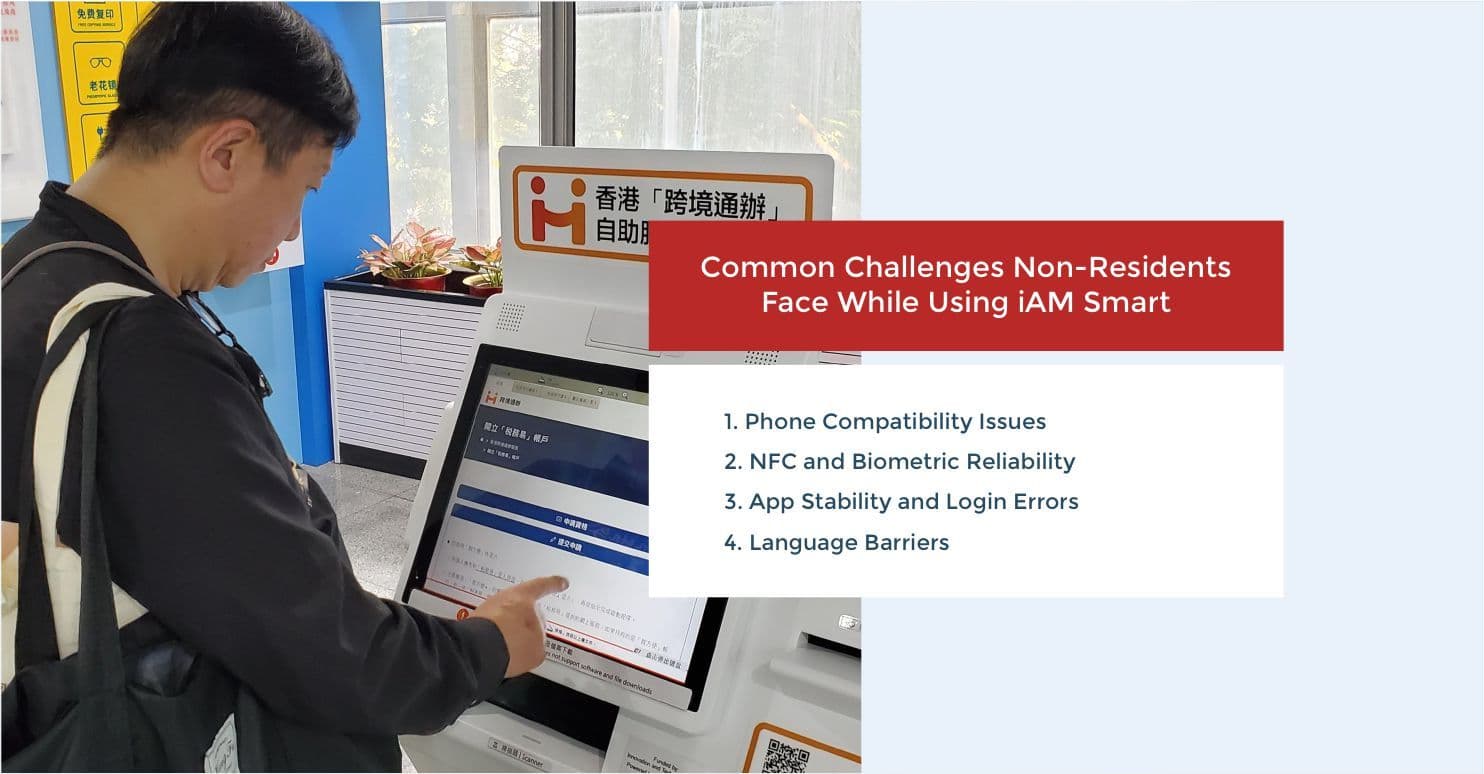
While iAM Smart is genuinely useful once it is set up, non-residents can face a few extra bumps along the way that citizens who grew up with the system may not think twice about.
Phone Compatibility Issues
A number of users have reported that the app rejects phones that were not purchased in Hong Kong, and that it lacks proper support for devices tied to a foreign passport or region. If you moved to Hong Kong with a phone you bought in your home country, there is a real chance you could run into setup problems that a locally bought phone would not have.
On top of that, some users have found that after updating their phone's operating system, the app stops working properly, with the login screen freezing up even though the fingerprint itself is accepted.
NFC and Biometric Reliability
The registration process leans heavily on your phone's NFC reader and biometric sensors. Some users have reported that the app's camera fails to recognize their face at all, making parts of the registration or login process impossible to complete.
Fingerprint reliability can be an issue too. Especially for anyone whose fingerprint has become fainter over time, since the app currently leans on biometrics as the main way to confirm identity rather than offering a password based alternative as a backup.
App Stability and Login Errors
Because iAM Smart is increasingly required for things like identity verification, connecting to certain accounts, and government services, any instability in the app itself becomes a real problem. Some users have described spending hours trying to complete identity verification because the app kept failing with network errors, even while trying multiple locations and different internet connections.
Language Barriers
For non-residents who are still getting comfortable with Cantonese or written Chinese, iAM Smart can feel a little intimidating at first, mostly because so much of the surrounding paperwork culture in Hong Kong still leans on Chinese, even when English options exist.
The app itself, along with the self-registration kiosks, does let you pick your preferred language before you begin, so English speakers are not left completely stranded. But when you start using iAM Smart to log into individual government or banking services, many of these connected platforms are not fully bilingual. And some declarations, terms of use, or legal notices you are asked to agree to during registration can be dense even for native English speakers, let alone someone reading it as a second language.
None of these issues are unique to iAM Smart. Almost any app you use, whether it is for banking, travel, or government services, comes with its own glitches, compatibility quirks, and small frustrations here and there. Most non-residents get through registration without running into any of these problems at all. And if you do face any major issues, in person options like service counters and mobile registration teams are there too, so you have the choice of getting help from a real person.
So while it is good to know these challenges exist, they are fairly rare and shouldn't stop you from going ahead and setting up your account.
iAM Smart is no longer just a login tool for government websites. Hong Kong is actively expanding it into a much bigger identity system that covers digital services, business use, and even physical access to buildings.
| Feature | Benefits |
| CorpID, short for Digital Corporate Identity | It will give companies their own secure digital identity, letting them handle authentication and digital signing for both government related and business to business services, without the usual paperwork. |
| AI Assistants Coming to Both Platforms | Both iAM Smart and the upcoming CorpID platform are set to get an AI assistant added this year, to offer instant help and more personalized guidance. |
| Nota Sign Integration for Digital Contracts | This is useful for anyone dealing with contracts that span the Greater Bay Area or wider Asia Pacific region, since it allows a signer to confirm their identity using a locally recognized method. |
| Moving Into Physical Access With Personal Code | A new feature called the iAM Smart Personal Code lets users generate a QR based token that shares only limited, anonymous identity information. This can be used for things like visitor registration or entering a building, without handing more personal data than necessary. So far, more than 60 residential estates, government buildings, and commercial sites have adopted this system. |
iAM Smart makes life easier for anyone living in Hong Kong, whether you are a citizen or not. As long as you hold a Hong Kong Identity Card, you can register and start using the app right away, no matter where you are from or how long you plan to stay. One login for hundreds of services, forms that fill themselves out, a single dashboard for your bills and applications, and now the option to sign documents digitally too. So if you already have your Hong Kong ID Card and have not set up iAM Smart yet, now is a good time to do it.


Global Services
State Services